Extract colors from a logo. Try Image Color Picker
Last updated November 17, 2026
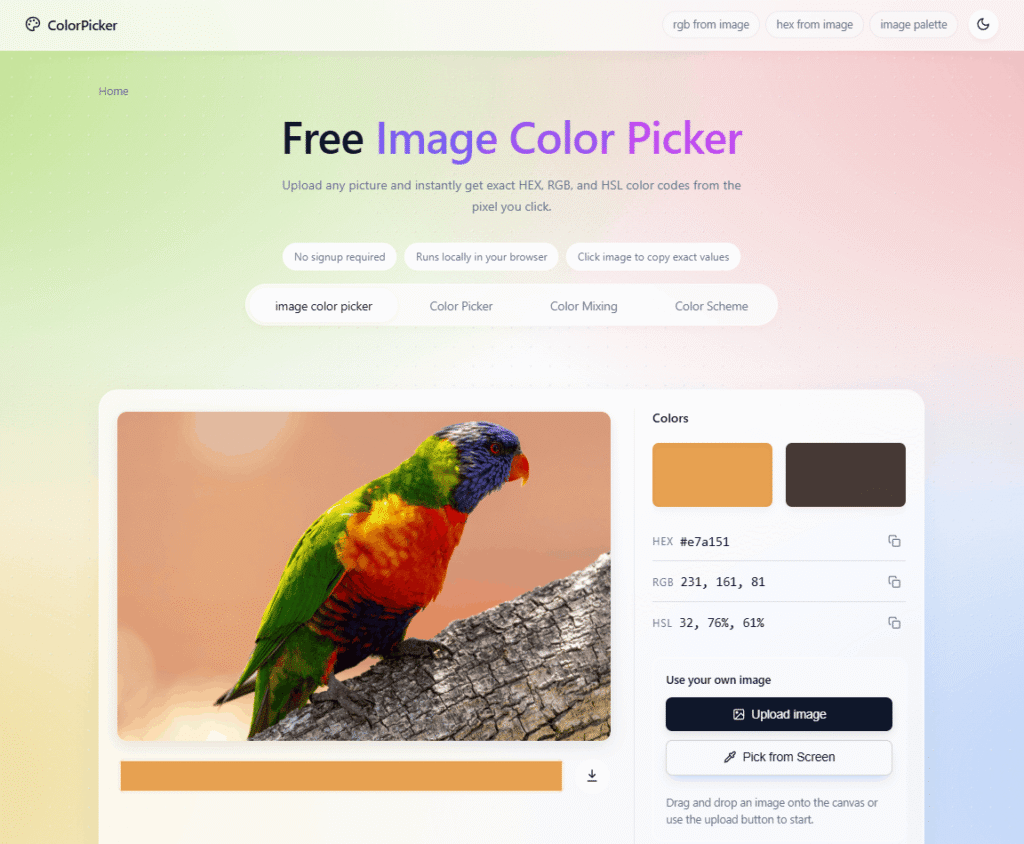
ColorPicker (image-color-picker.net) is a free browser-based image color picker — where you upload any photo, screenshot, logo, or design file, click any pixel, and instantly get the exact HEX, RGB, and HSL color codes. No signup. No server uploads. No waiting. Everything runs locally in your browser.
It is not a generic color wheel or palette generator. ColorPicker is built specifically for image-based color extraction — the practical workflow where you have a real asset in front of you and need to recover the exact color from a specific pixel to use in CSS, design tools, or brand documentation.
ColorPicker covers 6 focused image-color workflows in one platform — from sampling a single pixel for CSS to extracting a full brand palette from a logo — each with its own dedicated tool optimised for that specific task.
The tool uses the Canvas API to process images entirely in your browser — meaning your files never leave your device. No server uploads, no tracking, no data collection. This makes it the safest option for working with client assets, unreleased product designs, internal dashboards, and confidential brand files.
ColorPicker sits in the AI Tools For Design Generators and AI Tools For Developers categories on HeloAITools — alongside tools like Fotor and Photoroom — but as the definitive free specialist tool for pixel-accurate color extraction from images that no general-purpose design tool can replace.
🎨 Pixel-Accurate Color Sampling Click any pixel on your uploaded image and get the exact HEX, RGB, and HSL values simultaneously — not an approximation or average, but the precise rendered color at that exact point. The built-in magnifier lets you zoom in before clicking to avoid sampling anti-aliased edges, gradients, or shadows instead of the true swatch. For more AI Tools For Design Generators tools, explore the full category on HeloAITools.
🔢 Three Color Formats — HEX, RGB, and HSL Every pixel click returns all three color formats simultaneously:
| Format | Output Example | Best For |
|---|---|---|
| HEX | #e7a151 | CSS, HTML, web development, design tools |
| RGB | 231, 161, 81 | CSS, canvas work, component styling |
| HSL | 32, 76%, 61% | Adjusting lightness and saturation while preserving hue |
Copy the format that matches your workflow — no switching between tools or manual conversion required.
🔍 Magnifier — Zoom Before You Click The built-in zoom lens lets you inspect the exact pixel before committing to a click. Essential for images with anti-aliased edges, gradients, soft shadows, and compressed JPEGs where one or two pixels can change the value you copy. For more AI Tools For Image Editing tools, explore the full category on HeloAITools.
📋 One-Click Copy Click any color value to copy it instantly to your clipboard — HEX, RGB, or HSL. No selecting, no highlighting, no manual copying. Paste directly into your CSS file, Figma, Sketch, or any design tool.
🖥️ Pick From Screen Use the Pick From Screen feature to sample colors directly from anywhere on your screen — not just from uploaded images. Useful for matching colors from live websites, running applications, or any on-screen content.
🎨 Color Palette Builder Click multiple areas of your image to build a reusable color palette — collecting HEX, RGB, and HSL values from key areas of a photo, logo, or design. Export the palette for use in brand documentation, design systems, or CSS variables.
🔒 100% Local Processing — Privacy First Every uploaded image is processed entirely in your browser using the Canvas API. No files are sent to any server. No data is collected. No tracking. This makes ColorPicker the safest option for working with:
For more privacy-focused AI Tools For Developers tools, explore the full category on HeloAITools.
📁 Wide Format Support ColorPicker accepts all image formats that modern browsers render natively — JPEG, PNG, WebP, GIF, SVG, AVIF, and BMP. For PDFs or documents, take a screenshot first and upload the image file.
🎨 Color Mixing Tool The built-in Color Mixing tool lets you blend two colors and see the resulting HEX, RGB, and HSL values — useful for creating tints, shades, and intermediate values between two brand colors.
🎨 Color Scheme Generator Generate harmonious color schemes from any sampled color — complementary, analogous, triadic, and more. Build a complete design system palette starting from a single pixel click.
🌈 Popular Color Code Pages Quick-access reference pages for the most searched colors — Red, Blue, Green, Yellow, Dark Orange, Purple, Black, White, Gray, Gold, Aqua, Hot Pink — each with exact HEX, RGB, HSL values, shades, tints, and contrast guidance.
ColorPicker is not one tool — it is a suite of 6 specialised image-color workflows, each optimised for a specific task:
| # | Workflow | What It Does | Best For |
|---|---|---|---|
| 1 | RGB Color Picker from Image | Upload a picture, click any pixel, copy exact RGB values | CSS, canvas work, component styling |
| 2 | HEX Color Picker from Image | Upload a picture, click any pixel, copy exact HEX code | CSS, branding, design handoff |
| 3 | Color Picker from Screenshot | Upload a screenshot, click exact pixel, copy HEX/RGB/HSL | UI development, QA, design review |
| 4 | Extract Colors from Logo | Upload a logo, click key areas, copy brand color values | Brand documentation, design systems |
| 5 | Color Picker for CSS | Upload an image, click a pixel, copy CSS-ready values | Web development, front-end implementation |
| 6 | Color Palette from Image | Upload a photo, click key areas, build a reusable palette | Brand palettes, mood boards, design systems |
Step 1 — Upload Your Image Drag and drop any image onto the canvas, use the Upload button, or use Pick From Screen to sample directly from your display. Supports JPEG, PNG, WebP, GIF, SVG, AVIF, and BMP. For best accuracy, use the highest-quality version of your image — clean PNGs and sharp screenshots give the most reliable results.
Step 2 — Use the Magnifier and Click Move your pointer across the image with the magnifier to inspect the exact pixel you want. The zoom lens helps you avoid sampling anti-aliased edges, gradients, or shadows instead of the true swatch. Click once to lock the color.
Step 3 — Copy Your Color Values HEX, RGB, and HSL values appear instantly in the side panel. Click any value to copy it to your clipboard. Add it to your palette, export it, or paste it directly into your CSS, Figma, or design tool.
🎨 Designers and Brand Managers Extract exact brand colors from logo exports, marketing assets, and design files. Recover brand swatches from raster images when the original design files are unavailable. Build complete brand palettes from a single logo upload. For more AI Tools For Design Generators tools, explore the full category on HeloAITools.
💻 Front-End Developers and Web Developers Copy CSS-ready HEX, RGB, and HSL values directly from screenshots and mockups. Compare rendered UI against approved designs. Verify color tokens against live implementations. Use HSL values to adjust lightness and saturation while preserving hue relationships. For more AI Tools For Developers tools, explore the full category on HeloAITools.
🖥️ UI/UX Designers Sample exact colors from wireframes, prototypes, and design exports. Build design system palettes from reference images. Verify color consistency across components and screens.
📸 Photographers and Content Creators Extract dominant colors from product photos for consistent social media branding. Build mood board palettes from reference images. Match color grading across a photo series. For more AI Tools For Content Creation tools, explore the full category on HeloAITools.
🏢 Marketing Teams and Agencies Recover brand colors from client-supplied assets without access to original design files. Ensure color consistency across campaigns and platforms. Extract colors from competitor assets for competitive analysis.
🔍 QA Engineers and Design Reviewers Compare rendered button and component colors against approved mockups. Verify that implemented colors match design specifications. Identify color drift between design and development.
Uncommon Use Cases:
1. Pixel-accurate sampling — not approximation Generic color tools and palette generators return approximate dominant colors or averages. ColorPicker reads the exact rendered pixel at the point you click — the precise color at that specific coordinate, not an average of the surrounding area. This matters for production work where one or two pixels can change the value you copy. Tools like Fotor include color tools — but as one feature among hundreds. ColorPicker is built entirely around pixel-accurate color extraction.
2. 100% local processing — the only truly private color picker Most online color tools upload your image to a server for processing. ColorPicker uses the Canvas API to process everything in your browser — your files never leave your device. For designers working with client assets, unreleased products, and confidential design files, this is non-negotiable. No other free online color picker offers the same combination of accuracy and privacy.
3. 6 specialised workflows — not one generic tool ColorPicker is structured as 6 focused workflows — RGB from image, HEX from image, screenshot sampling, logo extraction, CSS-ready values, and palette building — each with its own dedicated page optimised for that specific task. This means every workflow is purpose-built rather than a generic tool trying to serve every use case at once.
| ColorPicker | Adobe Color | Coolors | Canva Color Picker | imagecolorpicker.com | |
|---|---|---|---|---|---|
| Pixel-accurate sampling | ✅ Yes | ❌ No | ❌ No | ⚠️ Limited | ✅ Yes |
| Local browser processing | ✅ Yes | ❌ Server upload | ❌ Server upload | ❌ Server upload | ❌ Server upload |
| HEX + RGB + HSL | ✅ All three | ✅ Yes | ✅ Yes | ⚠️ HEX only | ✅ Yes |
| Magnifier zoom | ✅ Yes | ❌ No | ❌ No | ❌ No | ✅ Yes |
| Pick from screen | ✅ Yes | ❌ No | ❌ No | ❌ No | ❌ No |
| Color mixing tool | ✅ Yes | ✅ Yes | ✅ Yes | ❌ No | ❌ No |
| Color scheme generator | ✅ Yes | ✅ Yes | ✅ Yes | ❌ No | ❌ No |
| No signup required | ✅ Yes | ❌ Required | ❌ Required | ❌ Required | ✅ Yes |
| Free | ✅ Yes | ✅ Free tier | ✅ Free tier | ✅ Free tier | ✅ Yes |
| Best for | Private pixel-accurate extraction | Adobe workflow | Palette inspiration | Canva users | Basic sampling |
| Category | Rating |
|---|---|
| Color Accuracy | ⭐ 5.0/5 |
| Privacy and Security | ⭐ 5.0/5 |
| Ease of Use | ⭐ 4.9/5 |
| Free Plan Value | ⭐ 5.0/5 |
| Workflow Coverage | ⭐ 4.8/5 |
| Magnifier Precision | ⭐ 4.8/5 |
| Format Support | ⭐ 4.7/5 |
| Mobile Experience | ⭐ 4.5/5 |
| Advanced Features | ⭐ 4.3/5 |
Q1. What is ColorPicker?
ColorPicker (image-color-picker.net) is a free browser-based image color picker — upload any photo, screenshot, logo, or design file, click any pixel, and instantly get the exact HEX, RGB, and HSL color codes. No signup, no server uploads, runs entirely in your browser. It is the leading free specialist tool in the AI Tools For Design Generators category for pixel-accurate color extraction on HeloAITools.
Q2. Is ColorPicker free?
Yes — completely free. No signup, no account, no credit card, no usage limits. Every feature including the palette builder, color mixing tool, and Pick From Screen is available at no cost.
Q3. Does ColorPicker upload my image to a server?
No. ColorPicker uses the Canvas API to process images entirely in your browser. Your files never leave your device — no server uploads, no data collection, no tracking. This makes it safe for client assets, confidential design files, and unreleased product images. For more privacy-focused AI Tools For Developers tools, explore the full category on HeloAITools.
Q4. What color formats does ColorPicker return?
ColorPicker returns HEX, RGB, and HSL simultaneously for every pixel click. Copy the format that matches your workflow — HEX for CSS and design tools, RGB for canvas and component work, HSL for adjusting lightness and saturation while preserving hue.
Q5. What image formats does ColorPicker support?
ColorPicker supports JPEG, PNG, WebP, GIF, SVG, AVIF, and BMP — all formats that modern browsers render natively. For PDFs or documents, take a screenshot first and upload the image file.
Q6. Can I use ColorPicker on a screenshot?
Yes. Screenshots are often the best source for color extraction because they preserve the exact rendered screen colors. Upload any screenshot and click the exact pixel you want to sample. For more AI Tools For Image Editing tools, explore the full category on HeloAITools.
Q7. Can I extract brand colors from a logo?
Yes. The Extract Colors from Logo workflow is specifically designed for this — upload your logo, click the key color areas, and copy HEX, RGB, or HSL values for brand documentation and design handoff. Works with PNG, WebP, and SVG logo exports.
Q8. Can I build a color palette from an image?
Yes. The Color Palette from Image workflow lets you click multiple areas of any photo, screenshot, or design image to build a reusable palette with HEX, RGB, and HSL values for each color. For more AI Tools For Content Creation tools, explore the full category on HeloAITools.
Q9. Does ColorPicker work on mobile?
Yes. Upload an image on any smartphone or tablet and tap the area you want to sample to get the color values. The interface is touch-friendly and works in any modern mobile browser.
Q10. What is the difference between the 6 workflows?
Each workflow is optimised for a specific task — RGB-first sampling, HEX-first sampling, screenshot color extraction, logo brand color extraction, CSS-ready value copying, and full palette building. Use the broad Image Color Picker for general tasks, then move to the specific workflow page when your task becomes more defined.
BeadPattern is an AI-powered pattern generator built specifically for physical bead crafting — Perler, Hama, Fuse, and Artkal…
Manus AI is an autonomous general-purpose AI agent — you give it a goal, not just a prompt,…
ReWords AI is an online AI tool built for one specific, genuinely useful job: replacing existing text inside…
Stitchgrid (imagetocrochetpattern.com) converts a photo into a lettered, editable crochet stitch chart — choose how many stitches go…

SeedRouter puts LLM, image, video and audio models behind one API key. Pay per request — failed requests…
SpeechBubbleMeme is a free, browser-based speech bubble maker — where you upload a photo, add a speech bubble…

DigiBouquet AI is a digital gifting tool that lets you send a flower bouquet gift as a personalized,…

Meshy AI is an advanced AI-powered 3D model generator that transforms text prompts and images into production-ready 3D…

Automater is a free system tray app that sits across all your AI coding agents and CLIs —…
Figma is the world’s leading collaborative design platform — used by 95% of the Fortune 500 and trusted…

Hugging Face is the world’s leading AI collaboration platform — the GitHub of machine learning. It is where…

Cutout.Pro is an AI-powered visual content creation and editing platform that helps users create professional-quality images and videos…