
7 Best AI Chatbots for Customer Support Under $50 a Month (2027)
The challenge is knowing which tool actually fits your situation. Per-conversation pricing sounds cheap until your volume spikes.…
Read →Coming up with fresh captions for Instagram, LinkedIn, Facebook, and X every single day is one of the fastest ways to burn out as a social media manager or small business owner. Rytr AI is one of the more affordable AI writing assistants built to solve exactly this problem — and in this guide, you’ll learn exactly how to use it to generate on-brand social media posts in minutes, plus how to get the most out of its free plan and custom use cases.
Rytr is an AI-powered writing assistant that helps individuals, marketers, and businesses generate content — including social media posts, blogs, emails, ads, and product descriptions — using AI language models. It offers more than 40 built-in use cases, supports 35+ languages, and is used by over 8 million people worldwide.
Unlike general-purpose chatbots, Rytr is purpose-built for content creation: you pick a use case (like “Instagram Caption” or “Facebook Ad”), give it a short brief, choose a tone, and it generates several ready-to-edit variations instantly. That structure is what makes it fast for repetitive tasks like daily social posting, compared to writing prompts from scratch in a general AI chat tool.
You can see Rytr’s full feature list and current pricing on our Rytr tool page.
Rytr works around three inputs: a use case (what type of content you want), a brief (a short description or a few keywords about your topic), and a tone (casual, witty, professional, persuasive, etc.). Its AI model uses those three inputs to generate multiple content variations at once, which you then pick from, edit, and refine using Rytr’s built-in rewrite and tone-matching tools.
For social media specifically, Rytr includes dedicated use cases for platforms and formats — including general social media posts, Instagram captions, Facebook ads, and LinkedIn posts — so the output is already shaped for the platform you’re writing for, rather than a generic block of text you have to reformat yourself.
Rytr AI has three pricing tiers:
| Plan | Price | What You Get |
|---|---|---|
| Free | $0/month | 10,000 AI characters/month, 1 language, all 40+ use cases, no credit card required |
| Unlimited | $9/month | Unlimited AI generations, 1 Tone Match, 50 plagiarism checks/month, 1 language, Chrome extension |
| Premium | $29/month | Unlimited AI generations, multiple Tone Matches, 100 plagiarism checks/month, 35+ languages, custom use cases, priority support |
For most solo creators or small businesses posting a handful of times a week, the Free plan is often enough to start. If you’re posting daily across multiple platforms or need custom brand-voice templates, the Unlimited or Premium tier removes the character cap and unlocks features like custom use cases (more on that below).
Rytr’s Free plan is a genuine, permanent free tier — not a time-limited trial — so you don’t need a workaround to use it. Here’s what to know:
A note on “how to get Rytr premium for free”: there’s no legitimate way to permanently unlock Premium features without paying — offers claiming otherwise are typically scams or account-security risks. If you need Premium-only features like custom use cases or multi-language Tone Match, the $9 or $29 monthly plans are the safe route, and you can cancel anytime if you only need it for a short campaign.
Here’s the full workflow, from sign-up to a published post.
Go to Rytr.me and sign up with your email or Google account. Select the Free plan to start — you can upgrade later if you outgrow it.
Before generating posts, add your brand name, industry, and a short description in Rytr’s settings. This helps the AI keep captions consistent with how your business actually talks, instead of generic filler copy.
From the dashboard, select a use case suited to your platform:
Enter a sentence or two describing what the post is about — e.g., “Announcing our summer sale, 20% off all products, ends Friday.” The more specific your brief, the more usable the output.
Rytr offers 20+ tones (witty, friendly, formal, persuasive, bold, etc.). Match the tone to your brand and platform — LinkedIn usually reads better in a “convincing” or “professional” tone, while Instagram often works well as “witty” or “casual.”
Click generate — Rytr produces multiple versions at once. Read through them and pick the one closest to what you want, or take the best lines from a few different variations.
Use Rytr’s Rewrite tool to adjust sentence structure or length, and Tone Match (Unlimited/Premium) to make the output sound more like your existing brand copy.
On paid plans, run the built-in plagiarism checker before publishing, especially if you’re producing high volumes of content.
Rytr can generate hashtag suggestions as part of the output, or you can add your own before scheduling the post through your usual social media tool.
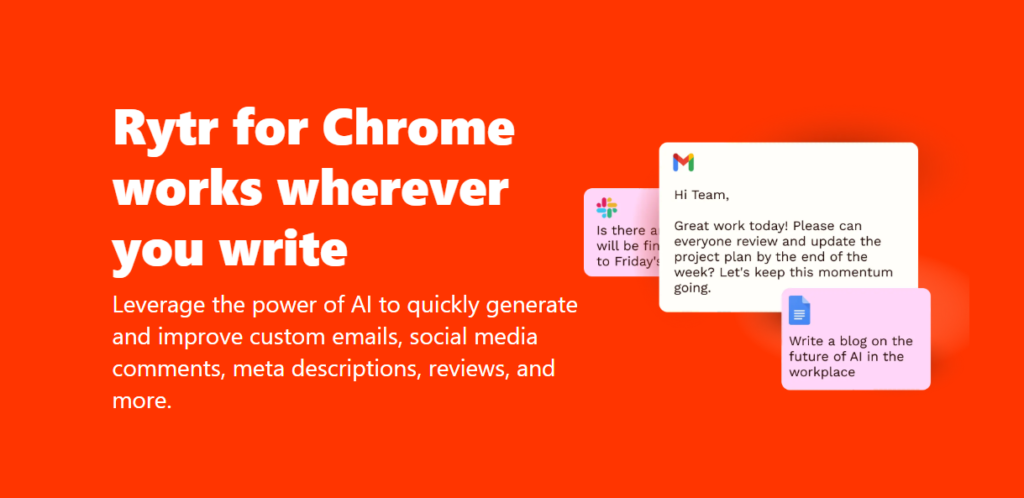
Custom use cases (available on the Premium plan) let you build a reusable template for content types Rytr doesn’t offer out of the box — useful if you have a recurring post format, like a weekly “Monday tip” series or a specific product-launch template.
This is particularly useful for agencies or social media managers running the same content format across many clients, since it standardizes output without rewriting the brief from scratch each time.
Pros
Cons
If Rytr’s free-tier limits aren’t enough for your posting volume, it’s worth comparing it against other AI copywriting tools we’ve reviewed:
You can browse more options in our AI Tools for Copywriting and AI Tools for Social Media categories.
What is Rytr used for?
Rytr is used to generate written content — including social media posts, blog articles, emails, ad copy, product descriptions, and SEO meta tags — using AI, across more than 40 built-in use cases.
How much does Rytr cost per month?
Rytr costs $0/month on the Free plan, $9/month on the Unlimited plan, or $29/month on the Premium plan, which adds custom use cases and multi-language Tone Match.
Is Rytr free to use?
Yes. Rytr’s Free plan is permanent (not a trial) and includes 10,000 AI characters per month across all 40+ use cases, with no credit card required.
How do I use Rytr for social media specifically?
Sign up, select a social-media-specific use case (like Instagram Caption or Social Media Post Ideas), write a short brief about your topic, choose a tone, and generate multiple caption variations to edit and publish.
Can I create my own custom templates in Rytr?
Yes, on the Premium plan. Go to Settings > Custom Use Cases to build a reusable template with your own input fields and prompt structure.
Ready to try it? Visit the Rytr tool page for the full feature breakdown, current pricing, and a direct link to get started.

The challenge is knowing which tool actually fits your situation. Per-conversation pricing sounds cheap until your volume spikes.…
Read →Instagram Reels is the most competitive short-form video format in 2027. Over 200 billion Reels are played every…
Read →Posting consistently on LinkedIn is one of those things everyone agrees matters and almost nobody actually sustains —…
Read →