
Zanus AI Pricing Breakdown: Is This Private Enterprise AI Worth the Cost? (2027)
If you have been searching for Zanus AI pricing and hitting a wall — you are not alone.…
Read →If you’ve seen an eerily realistic AI-generated video pop up on your feed lately, there’s a good chance it came from Hailuo AI. It’s one of the fastest-growing AI video generators of 2026, and a huge number of people searching “what is Hailuo AI” still aren’t totally sure what it does, who’s behind it, or how to actually use it without wasting their free credits.
This guide answers all of that in one place: what Hailuo AI is, who owns it, exactly how to use it (text-to-video and image-to-video), how the credit system works, and how to cancel your subscription if it’s not for you.
📌 Quick answer: Hailuo AI is a free-to-start text-to-video and image-to-video generator built by MiniMax. Type a prompt or upload a photo, and it renders a short, realistic video clip in under two minutes.
In this guide:
Hailuo AI is an AI-powered text-to-video and image-to-video generator built by MiniMax, a Shanghai-based AI company. In plain terms, you type a description (or upload a photo) and Hailuo turns it into a short, realistic video clip — no filming, no editing software, and no animation skills required.
It launched in 2024 and went viral almost immediately for how physically realistic its motion looked compared to earlier AI video tools — things like fabric movement, liquids, and facial expressions came out noticeably smoother and more lifelike. Since then, MiniMax has kept releasing new versions (Hailuo 02, and the current flagship Hailuo 2.3), each one faster and more accurate than the last.
Today, Hailuo AI is used for:
It’s available on the web, iOS, and Android, and it competes directly with tools like Runway, Kaiber, and other generative video tools — usually winning people over on price and speed rather than raw cinematic polish.
🎬 Try it yourself: See pricing, sample outputs, and full specs on our Hailuo AI tool page →
Hailuo AI is owned and developed by MiniMax, a Chinese artificial intelligence company founded in December 2021 by Yan Junjie along with co-founders including Zhou Yucong. Yan previously spent years at SenseTime, a well-known Chinese computer-vision AI company, before starting MiniMax.
MiniMax went public on the Hong Kong Stock Exchange in January 2026, raising roughly $618 million and reaching a valuation of around $4 billion, with backing from investors such as Alibaba and Tencent. Beyond Hailuo (video), MiniMax also builds other AI products, including an AI companion app and speech and music generation models. So when you use Hailuo AI, you’re using one product from a much larger, now publicly traded AI company — not a small independent startup.
Getting started with Hailuo AI takes just a few minutes. Here’s the fastest way to create your first video.
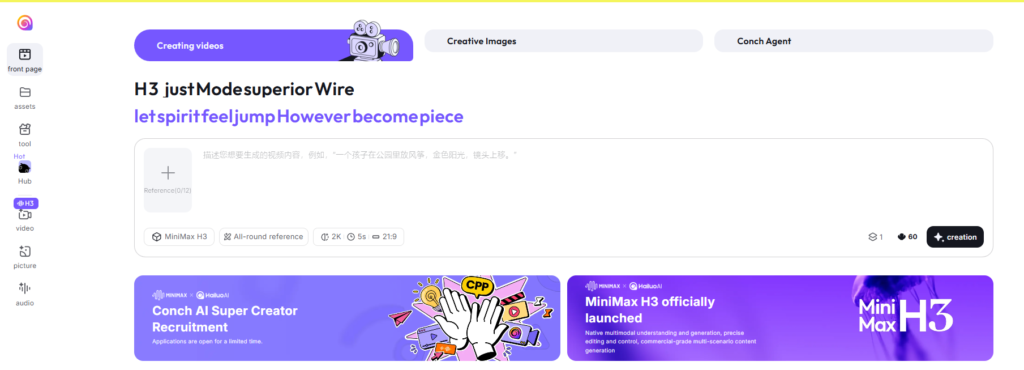
Go to Hailuo AI’s official site and sign up with your email, Google, or Apple account. You’ll land on the dashboard with a prompt box front and center.
The more concrete your prompt, the better your result. Instead of “a dog running,” try something like “a golden retriever running across a beach at sunset, camera tracking alongside it, cinematic lighting.” Include subject, action, setting, and camera movement where relevant.
Select a model version (for example, the physics-focused 2.3 model for realistic movement, or a faster/cheaper variant if you’re just testing ideas), then choose resolution and clip length if your plan allows it.
Hit generate and your clip will render — usually in well under two minutes. Review the result, and if it’s not quite right, tweak your prompt and regenerate rather than starting from scratch.
Once you’re happy with the clip, download it directly or share it straight to social platforms from the dashboard. Free-tier videos are typically watermarked; paid plans remove the watermark and unlock commercial usage rights.
If your goal is a specific, polished video rather than just experimenting, follow this workflow:
Once you’ve got a finished clip, tools like Klap or Munch can help you repurpose it into multiple short-form cuts for different platforms.
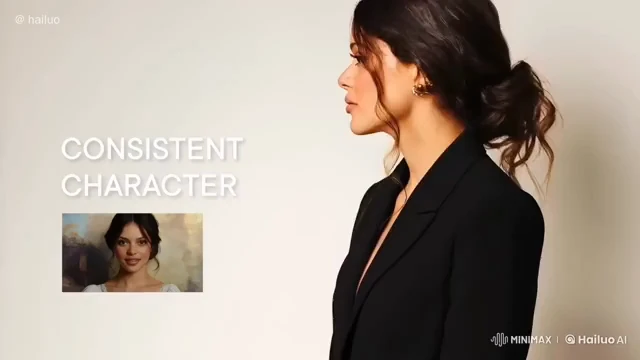
Image-to-video is one of Hailuo’s most popular features because it lets you bring a still photo to life instead of generating a scene from scratch.
This feature is especially useful for ecommerce (turning static product photos into scroll-stopping video ads) and for animating portraits or illustrations without touching traditional animation software. If you’re working from AI-generated stills rather than photos, pairing Hailuo with an AI image editor first can help you get a cleaner source image before animating it.
Hailuo AI runs on a credit-based system: every plan gives you a monthly (or daily, on the free tier) credit allowance, and each video generation deducts credits based on the model, resolution, and length you choose. As a rough guide:
Exact credit costs per video change as MiniMax updates its models and pricing, so before committing to a plan, generate a couple of test videos on the free tier first and check the live credit cost shown next to each model in your dashboard — it’s the most reliable way to estimate how many videos your plan will actually get you. Full plan-by-plan pricing is on our Hailuo AI tool page.
A few reliable ways to stretch your credits without paying:
If you decide a paid plan isn’t for you, cancelling is straightforward:
A few things worth knowing before you cancel:
What is Hailuo AI used for?
Mainly generating short AI videos from text prompts or images — for social content, ads, product demos, and creative projects.
Is Hailuo AI free to use?
Yes, there’s a free tier with a small daily credit allowance for short, watermarked, lower-resolution clips. Paid plans remove the watermark and unlock higher resolution and longer clips.
Who owns Hailuo AI?
MiniMax, a Shanghai-based AI company founded by Yan Junjie in 2021, which went public on the Hong Kong Stock Exchange in January 2026.
Can Hailuo AI generate video from an image?
Yes — upload a photo, add a short motion prompt, and Hailuo animates it into a video clip.
How long does it take to generate a video on Hailuo AI?
Generation is generally fast, often well under two minutes per clip, though times vary with model choice, resolution, and current server load.
Can I cancel Hailuo AI anytime?
Yes, you can cancel at any time from your account settings, but the cancellation applies at the end of your current billing period rather than instantly.
Want to compare Hailuo AI against other options before you commit? Explore more picks in our directory:
Looking for more? See our full breakdown of Hailuo AI on the Hailuo AI tool page, or browse the complete AI tools directory.
👉 Have you tried Hailuo AI yet? Check current pricing and start creating →

If you have been searching for Zanus AI pricing and hitting a wall — you are not alone.…
Read →Searching “free AI video generator no watermark no sign up” usually turns up a wall of listicles promising…
Read →Three tools. Three completely different answers to the same question. The question is: what does “best AI video…
Read →