
10 Best AI Tools for Instagram Reels Content Creation (2027)
Instagram Reels is the most competitive short-form video format in 2027. Over 200 billion Reels are played every…
Read →You downloaded a video, opened the file — and instead of playing, it opened in Notepad. Or you clicked a stream link and got a wall of text starting with #EXTM3U. Or your media player threw an error and refused to load it at all.
This is the M3U8 problem. And it confuses millions of people every year — because M3U8 files don’t behave like normal video files.
This guide explains exactly what an M3U8 file is, how to play it in your browser without installing anything, how to convert it to MP4, and how to fix the most common errors — all in plain English.
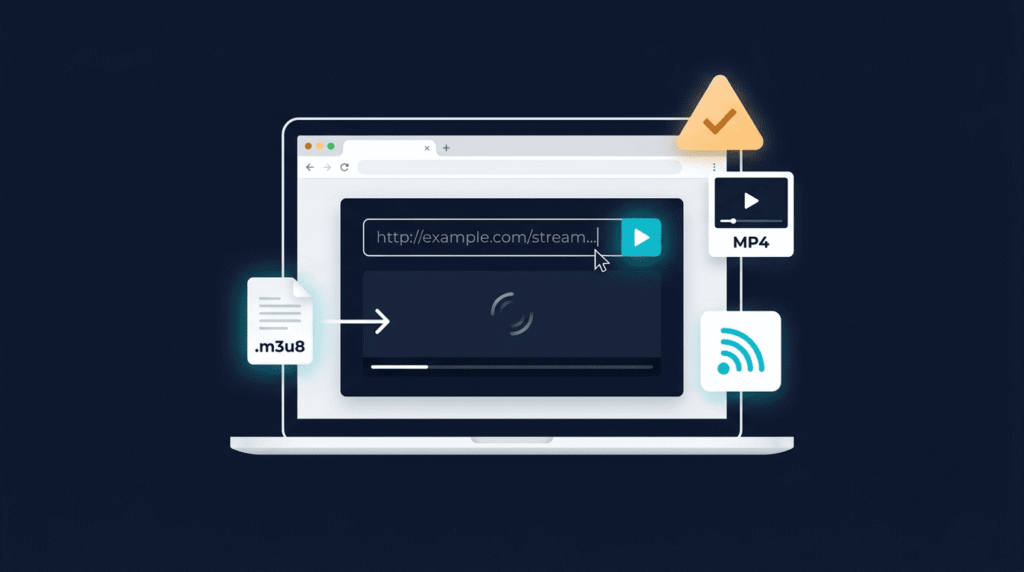
An M3U8 file is not a video file. It’s a playlist — a plain text file that tells a video player where to find the actual video chunks on the internet.
Think of it like a table of contents for a book. The table of contents isn’t the book itself — it just tells you where each chapter is. An M3U8 file works the same way: it lists the locations of small video segments (usually 2–10 seconds each), and a compatible player fetches and plays them in order.
This is the foundation of HLS — HTTP Live Streaming — the most widely used video streaming format on the internet today. When you watch a live stream on any major platform, there’s almost certainly an M3U8 file working behind the scenes.
| Part | Meaning |
|---|---|
| M3U | MP3 URL — the original playlist format |
| 8 | UTF-8 encoding — supports all languages and characters |
The “8” simply means the file uses UTF-8 text encoding, which handles every alphabet on earth. Without it, channel names in non-English languages (Arabic, Chinese, Cyrillic) would appear as garbled characters.
| Feature | M3U8 | MP4 |
|---|---|---|
| Contains video? | ❌ No — just a playlist | ✅ Yes — actual video data |
| File size | Tiny (a few KB) | Large (hundreds of MB) |
| Used for | Live streaming, IPTV | Downloaded video files |
| Open in text editor? | ✅ Yes — readable text | ❌ No — binary data |
| Needs internet? | Usually yes | No |
Open any M3U8 file in Notepad and you’ll see something like this:
#EXTM3U
#EXT-X-VERSION:3
#EXT-X-TARGETDURATION:10
#EXTINF:9.009,
https://example.com/stream/segment001.ts
#EXTINF:9.009,
https://example.com/stream/segment002.ts
#EXTINF:9.009,
https://example.com/stream/segment003.ts
#EXT-X-ENDLIST
Each #EXTINF line is a video segment — a few seconds of footage. The player reads this list, downloads each segment in order, and stitches them together into a continuous video. That’s the entire magic of HLS streaming.
There are 4 ways to play an M3U8 file, depending on your situation:
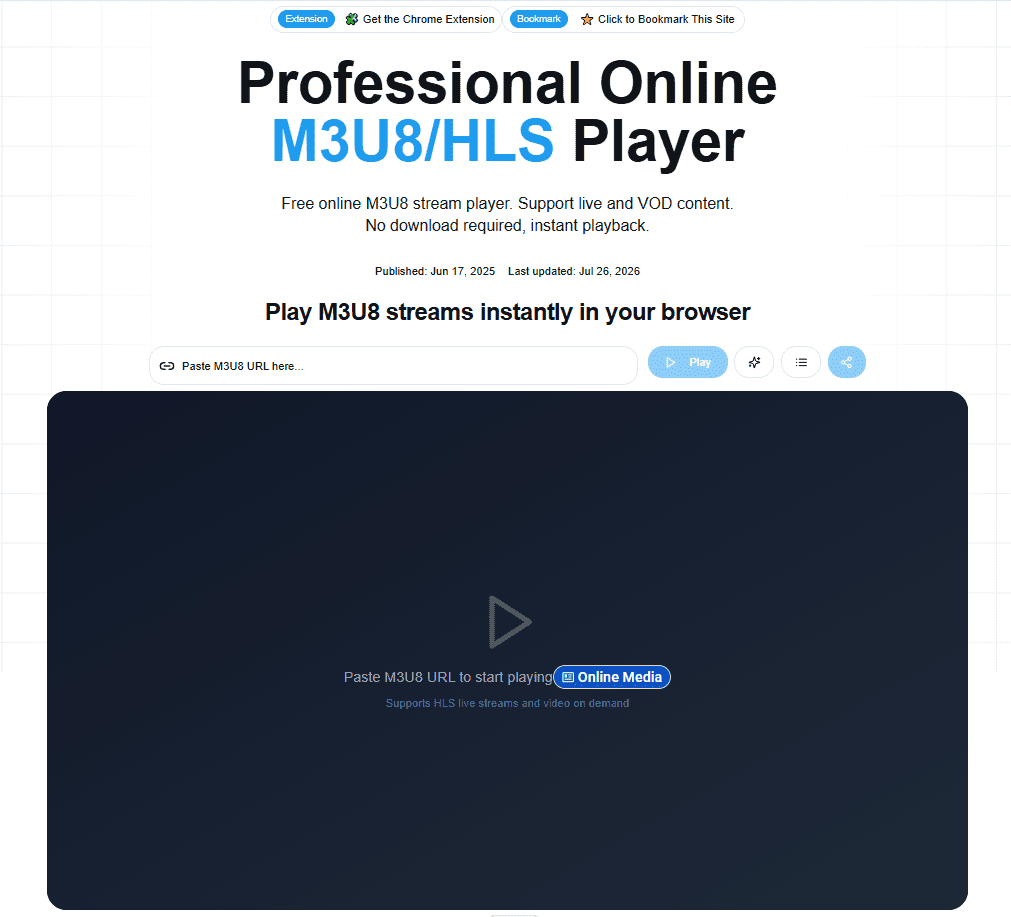
The fastest way to play any M3U8 file or stream URL is directly in your browser using a free online player.
Using M3U8 Player (browser-based):
What makes this the best starting point:
Pro tip: If the stream doesn’t play in the browser player, it’s almost always a CORS issue (the server is blocking browser requests). In that case, use VLC (Method 2 below).
VLC is the most reliable desktop option for M3U8 files. It’s free, open-source, and works on Windows, Mac, and Linux.
For a stream URL:
Ctrl+N)For a local .m3u8 file:
.m3u8 file directly into the VLC windowBest for: Streams that fail in browser players due to CORS restrictions, HEVC/H.265 streams, large IPTV playlists
iPhones support HLS natively — no app needed.
This works because Apple invented HLS and built native support into every iOS device. It’s the cleanest mobile experience for M3U8 streams.
Android doesn’t support HLS natively in Chrome, but there are two easy options:
Option A — MX Player:
Option B — VLC for Android:
Sometimes you want to save a stream as a regular MP4 file — to watch offline, edit in video software, or share without needing an internet connection.
Important: You can’t just rename .m3u8 to .mp4. The M3U8 file contains no video data — it’s just a playlist. You need a tool that downloads all the video segments and stitches them together.
The M3U8 Player includes a built-in M3U8-to-MP4 converter:
Best for: Quick conversions without installing software
VLC can convert M3U8 streams to MP4 using its built-in Convert/Save feature:
.mp4VLC will play through the stream and save it as MP4 simultaneously. Note: for long streams, this takes as long as the stream itself.
FFmpeg is a free command-line tool that converts M3U8 to MP4 in seconds — much faster than VLC for long streams.
Loadingffmpeg -i "https://example.com/stream.m3u8" \
-c copy output.mp4
Replace the URL with your M3U8 link and output.mp4 with your desired filename.
Best for: Technical users, batch conversions, large files
M3U8 streams fail for specific, diagnosable reasons. Here are the most common errors and exactly how to fix them:
What it means: The browser player can’t access the video segments.
Most common causes & fixes:
| Cause | Fix |
|---|---|
| CORS block | Use VLC instead — desktop players bypass browser CORS restrictions |
| Stream is offline | Test the URL in a fresh browser tab — if it returns an error, the stream is dead |
| HEVC/H.265 codec | Chrome doesn’t support H.265 natively — try Safari or VLC |
| Malformed M3U8 | Open the file in Notepad and check that URLs are valid and complete |
What it means: Your computer doesn’t know which app should open .m3u8 files.
Fix on Windows:
.m3u8 fileFix on Mac:
What it means: The stream bitrate exceeds your connection speed, or the server is overloaded.
Fixes:
What it means: Your player is missing a codec needed to decode part of the stream.
Fixes:
What it means: The server is refusing your request — usually because of authentication or geo-blocking.
Fixes:
What it means: The M3U8 file is saved in the wrong text encoding — not UTF-8.
Fix:
| Situation | Best Choice |
|---|---|
| Quick stream test, no install | ✅ M3U8 Player (browser) |
| IPTV playlist management | ✅ M3U8 Player (Pro — cloud sync, broken-channel checker) |
| Stream blocked by CORS | ✅ VLC |
| HEVC/H.265 stream | ✅ VLC |
| Convert M3U8 to MP4 | ✅ M3U8 Player or VLC |
| iPhone/iPad | ✅ Safari (native) |
| Android | ✅ VLC or MX Player |
| Large IPTV playlist (1,000+ channels) | ✅ M3U8 Player Pro |
An M3U8 file is a plain-text playlist used by the HLS (HTTP Live Streaming) protocol. It doesn’t contain any video — it lists the URLs of small video segments that a compatible player downloads and plays in sequence. It’s the standard format behind most live streaming on the internet today.
Because your computer doesn’t have a default app set for .m3u8 files. Right-click the file, choose “Open with,” select VLC Media Player, and check “Always use this app.” Alternatively, paste the M3U8 URL into a browser-based player like M3U8 Player — no file association needed.
Yes. Browser-based players like M3U8 Player play M3U8 streams directly in your browser — paste the URL and click play. No download or installation required. Works on any device with a modern browser.
Use M3U8 Player’s built-in converter (browser-based, no install), VLC’s Convert/Save feature, or FFmpeg via command line. You cannot simply rename the file — the M3U8 contains no video data, so a tool must download all the segments and merge them into an MP4 container.
The most common reasons are: a CORS block (the server blocks browser requests — use VLC instead), an expired stream URL (get a fresh link), or an unsupported codec (Chrome doesn’t support HEVC/H.265 natively — try Safari or VLC).
Yes. An M3U8 file is plain text — it contains no executable code and cannot carry a virus. The risk is never the file itself, but what you install to open it. Stick to trusted players like VLC or browser-based tools and you have nothing to worry about.
Both are playlist formats. M3U8 uses UTF-8 character encoding, which supports all languages and alphabets. M3U uses whatever encoding your system defaults to, which causes garbled characters for non-English content. For practical purposes, any player that opens one opens the other.
Yes. iPhones support HLS natively. Open Safari, paste the M3U8 URL into the address bar, and the iOS video player starts automatically — no app needed.

Instagram Reels is the most competitive short-form video format in 2027. Over 200 billion Reels are played every…
Read →Posting consistently on LinkedIn is one of those things everyone agrees matters and almost nobody actually sustains —…
Read →If you sell on Etsy, you already know the problem. Your product is great. Your design is solid.…
Read →