Edit images from a reference photo with Img2Img AI
Last updated November 12, 2026
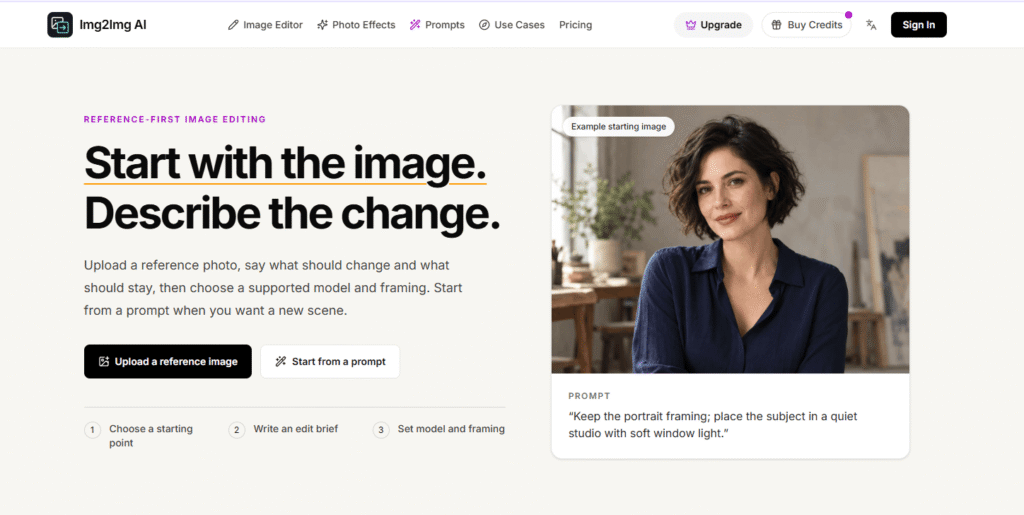
Img2Img AI is a browser-based reference-first image editing and generation workspace — where you start with an image, describe the change, and let the AI handle the rest. No Photoshop skills, no complex prompting, no switching between tools.
The concept is simple but powerful: instead of generating images from scratch with a text prompt, Img2Img AI uses your reference photo as the starting point — preserving the composition, pose, lighting, and framing you already like, while applying exactly the changes you describe. The result is a controlled, repeatable edit rather than a random generation.
Img2Img AI gives you access to 11 of the world’s most advanced AI image models in one workspace — including Nano Banana, Nano Banana Pro, Nano Banana 2, GPT Image 2, GPT Image 2.5, GPT Image 1.5, Grok Imagine AI, Flux.2 Max, Seedream 4, Seedream 4.5, and Seedream 5.0 Pro — all switchable in a single click, with no separate accounts or API keys required.
Previously operating as meigenai.app, Img2Img AI has migrated to img2img.ai — with all former paying customers keeping their remaining credits for one year after transfer.
Img2Img AI sits at the top of the AI Tools For Image Editing category alongside tools like Fotor and remove.bg — but with a unique reference-first workflow and multi-model access that no single-model editor can match.
🖼️ Image-to-Image Editing — Reference-First Workflow Upload a reference photo, describe what should change and what should stay, choose your model and framing, and generate. The reference image guides the result — preserving composition, pose, lighting, and subject identity while applying your described changes. This is the core of what makes Img2Img AI different from text-only generators. For more AI Tools For Image Editing, explore the full category on HeloAITools.
✍️ Text-to-Image — Start From a Prompt When you want a completely new scene rather than an edit of an existing image, switch to Text-to-Image mode. Write your prompt, choose your model and aspect ratio, and generate. The same workspace handles both workflows — no switching between tools. For more AI Tools For Image Generator tools, explore the full category on HeloAITools.
🤖 11 AI Models — Switch in a Click Img2Img AI gives you access to 11 of the world’s most advanced AI image models in one workspace:
| Model | Best For |
|---|---|
| Nano Banana | Fast, versatile image editing and generation |
| Nano Banana Pro | Higher quality output with more detail control |
| Nano Banana 2 | Latest generation — improved consistency and accuracy |
| GPT Image 2 | Crisp, polished images with fine detail — OpenAI’s best |
| GPT Image 2.5 | Enhanced GPT Image with improved instruction following |
| GPT Image 1.5 | Balanced quality and speed for everyday edits |
| Grok Imagine AI | xAI’s image model — creative and expressive output |
| Flux.2 Max | Maximum quality Flux generation — detailed and precise |
| Seedream 4 | Balanced composition and style exploration |
| Seedream 4.5 | Enhanced Seedream with improved subject consistency |
| Seedream 5.0 Pro | Top-tier Seedream — detailed images with style range |
No other image editor aggregates this level of model access in one workspace. For comparison, Hugging Face does this for ML models — Img2Img AI does it for AI image editing models.
🎨 Image Editor — Built-In Editing Tools The built-in Image Editor gives you direct editing tools alongside AI generation — crop, adjust, and refine your images without leaving the workspace. Edit and generate in the same environment for a seamless workflow.
✨ Photo Effects — Curated Starting Points Photo Effects provides curated preset starting points for common transformations — age progression, curls, PS2 style, cartoon-to-realistic, chibi, and more. One-click starting points that frame the request before you customise further. For more AI Tools For Generative Art, explore the full category on HeloAITools.
📐 Flexible Aspect Ratios Choose from Auto, 1:1, 2:3, 3:2, 3:4, 4:3, 4:5, 5:4, 9:16, 16:9, and 21:9 — covering every platform format from Instagram square to cinematic widescreen. Available controls vary by model.
⚡ Quality Settings Choose Low, Medium, or High quality output depending on your use case and credit budget. Low for quick drafts, High for final production images.
🔄 Prompt Optimiser The built-in Prompt Optimise feature refines your edit brief before generation — improving instruction clarity and helping the model understand exactly what you want to change and what to preserve.
📦 Batch Generation Generate multiple variations in one run — useful for testing different models, aspect ratios, or prompt variations on the same reference image.
💡 Prompt Starting Points Curated prompt starting points give you ready-made briefs for common use cases — product photography, portrait editing, retro lettering, landscape scenes, and more. Use them as-is or customise for your specific image.
Step 1 — Choose a Starting Point Upload a reference image for Image-to-Image editing, or switch to Text-to-Image for a new scene. You can upload up to 4 reference images (max 15MB each).
Step 2 — Write the Edit Brief Describe what should change and which details the model should try to keep. Be specific — name the subject, the change, and the elements to preserve. Use the Prompt Optimiser to refine your brief before generating.
Step 3 — Set Model and Framing Choose your AI model from the 11 available options. Set aspect ratio, quality level, and any other model-specific controls. Different models interpret the same prompt differently — switching models is the fastest way to explore different results.
Step 4 — Review and Iterate Open the generated image and review. Adjust the prompt or settings for another pass. Each generation costs credits — failed or unstarted steps are refunded.
🔄 Restyle a Photo Ask for a new colour palette, medium, or mood while using your image as the visual reference. Change a photo to oil painting, watercolour, cinematic film, or any other style — while keeping the original composition.
✏️ Adjust the Subject or Scene Name the detail to change — swap a background, change clothing, alter lighting, add or remove objects — and keep the rest of the brief explicit. Outcomes vary by model.
✂️ Remove a Background or Object Use the editor task shortcut to frame the request, then inspect edges and details in the result. For dedicated background removal at scale, also see remove.bg in the AI Tools For Image Editing category.
↔️ Extend the Frame Choose a wider or taller aspect ratio where available, and describe what should continue beyond the original crop — useful for creating landscape versions of portrait images.
🔆 Enhance a Photo Request changes to clarity, lighting, or noise reduction. Behaviour depends on the selected model — GPT Image 2 and Flux.2 Max tend to produce the most detailed enhancement results.
🎭 Try a Preset Look Open Photo Effects for curated starting points — age progression, curls, PS2 style, cartoon-to-realistic, chibi, and more. One-click starting points that frame the request before you customise.
🛍️ E-commerce Product Photography Use a product photo as the reference image and describe the scene change — new background, lifestyle setting, studio lighting. Combine with Photoroom for a complete e-commerce visual workflow. Browse all AI Tools For eCommerce on HeloAITools.
🎨 Design and Creative Work Generate concept art, illustrations, and design assets from reference images. Use the multi-model access to compare outputs from Flux.2 Max, Seedream 5.0 Pro, and GPT Image 2.5 on the same brief. For more AI Tools For Design Generators, explore the full category on HeloAITools.
Uncommon Use Cases:
Three things set Img2Img AI apart from every other tool in the AI Tools For Image Editing and AI Tools For Image Generator categories:
1. Reference-first workflow — the most controlled image editing approach available Most AI image tools start with a text prompt and generate something new. Img2Img AI starts with your image — preserving what you already like (composition, pose, lighting, subject) while applying only the changes you describe. This reference-first approach produces more predictable, more controllable, and more repeatable results than prompt-only generation. Tools like Fotor and remove.bg handle specific editing tasks — Img2Img AI handles the full directed editing workflow.
2. 11 frontier AI models in one workspace — no separate accounts needed GPT Image 2.5, Flux.2 Max, Seedream 5.0 Pro, Grok Imagine AI, and Nano Banana 2 — all in one workspace, all switchable in a single click. No separate OpenAI account, no xAI API key, no Flux subscription. This is the broadest model access available in any single image editing tool. For comparison, CapCut aggregates video AI models — Img2Img AI does the same for image editing models.
3. Migrated from meigenai.app with full credit continuity Img2Img AI has a proven track record — previously operating as meigenai.app with a paying customer base. The migration to img2img.ai includes full credit continuity for all former customers (credits valid for one year after transfer). This is a platform with real users, real history, and a commitment to customer continuity that many newer AI tools lack.
| Img2Img AI | Adobe Firefly | Midjourney | Fotor | CapCut | |
|---|---|---|---|---|---|
| Reference-first editing | ✅ Core workflow | ✅ Yes | ⚠️ Limited | ✅ Yes | ✅ Yes |
| AI models available | ✅ 11 models | ❌ Adobe only | ❌ MJ only | ❌ Fotor only | ✅ Multiple |
| Text-to-image | ✅ Yes | ✅ Yes | ✅ Yes | ✅ Yes | ✅ Yes |
| Built-in image editor | ✅ Yes | ✅ Yes | ❌ No | ✅ Yes | ✅ Yes |
| Photo effects presets | ✅ Yes | ✅ Yes | ❌ No | ✅ Yes | ✅ Yes |
| Batch generation | ✅ Yes | ✅ Yes | ✅ Yes | ✅ Yes | ❌ No |
| Commercial use | ✅ Check terms | ✅ Yes | ✅ Yes | ✅ Yes | ✅ Yes |
| Free plan | ✅ Free credits | ✅ 25 credits/mo | ❌ Paid only | ✅ Yes | ✅ Yes |
| Mobile app | ❌ Web only | ✅ Yes | ✅ Yes | ✅ Yes | ✅ Yes |
| Best for | Multi-model reference editing | Commercial-safe Adobe workflow | Premium AI art | All-in-one editing | Video + image |
| Category | Rating |
|---|---|
| Model Variety | ⭐ 5.0/5 |
| Reference-First Workflow | ⭐ 4.9/5 |
| Ease of Use | ⭐ 4.7/5 |
| Output Quality | ⭐ 4.7/5 |
| Photo Effects | ⭐ 4.6/5 |
| Free Plan Value | ⭐ 4.5/5 |
| Credit Value | ⭐ 4.5/5 |
| Mobile Experience | ⭐ 3.0/5 |
| Community and Support | ⭐ 4.3/5 |
Q1. What is Img2Img AI?
Img2Img AI is a browser-based reference-first image editing and generation workspace — where you upload a reference photo, describe the change, choose from 11 AI models, and generate. It is the leading multi-model image editing tool in the AI Tools For Image Editing category on HeloAITools.
Q2. Is Img2Img AI free?
Yes. Img2Img AI offers free credits with no sign-up required for basic use. Credit packs start from $4.99 for additional generations. Each generation costs 5 credits. Failed or unstarted steps are refunded.
Q3. What AI models does Img2Img AI use?
Img2Img AI gives you access to 11 AI models — Nano Banana, Nano Banana Pro, Nano Banana 2, GPT Image 2, GPT Image 2.5, GPT Image 1.5, Grok Imagine AI, Flux.2 Max, Seedream 4, Seedream 4.5, and Seedream 5.0 Pro — all switchable in a single click. For more tools that aggregate multiple AI models, also see Hugging Face in the AI Tools For Developers category.
Q4. What is image-to-image editing?
Image-to-image editing starts with an existing photo as a reference — preserving composition, pose, lighting, and subject — while applying the changes you describe in your prompt. It produces more controlled, more repeatable results than text-only generation because the AI has a visual anchor to work from.
Q5. Will Img2Img AI preserve my face, product, or composition exactly?
Not guaranteed — preservation accuracy varies by model. Some models follow reference images more closely than others. GPT Image 2 and Flux.2 Max tend to produce the most accurate reference-following results. Always test your specific use case before committing to a paid plan.
Q6. What image files can I upload?
Img2Img AI accepts standard image file formats up to 15MB per image. You can upload up to 4 reference images per generation. Check img2img.ai for the current list of supported file types.
Q7. What happened to meigenai.app?
meigenai.app has migrated to img2img.ai. All former paying customers keep their remaining credits for one year after the transfer date. Visit img2img.ai and use the Restore Credits option to reclaim your balance.
Q8. Can I use Img2Img AI for e-commerce product photography?
Yes. Upload a product photo as your reference image and describe the scene change — new background, lifestyle setting, studio lighting. For a complete e-commerce visual workflow, combine Img2Img AI with Photoroom for batch processing and Shopify integration. Browse all AI Tools For eCommerce on HeloAITools.

Adobe Firefly is Adobe’s generative AI platform for creating and editing images, videos, audio, and creative content with…
GoEnhance AI is an all-in-one AI video and image enhancement platform that helps creators produce professional-quality content with…
NightCafe is an AI-powered creative platform for generating and exploring AI artwork. It provides access to multiple AI…
BGRemover is a 100% free AI background remover that creates clean transparent PNGs from any photo in seconds…
WeryAI is an all-in-one AI creative platform that brings together leading AI models for video generation, image creation,…

MimicPC is a browser-based AI workspace that lets users run powerful AI applications without installing software or configuring complex…
Civitai is the world’s largest open-source AI art community and model hub — where millions of creators discover,…
Hailuo AI is an advanced AI-powered creative platform developed by MiniMax that enables users to generate cinematic videos,…
PixPix is an AI-powered creative workspace built for brands, e-commerce sellers, and creative teams who need professional-grade image and video…
TextRemover is an AI-powered image text removal tool that lets you remove any visible text, watermark, overlay, or…
Pixlr is a free, browser-based AI photo editor and image generator that combines a full photo editing suite,…
ReWords AI is an online AI tool built for one specific, genuinely useful job: replacing existing text inside…